
Full backup and restore
Export a .stopsandstories file and restore it after checking what will be replaced.
What a backup contains
A full backup includes places, check-ins, collections, people and related media, along with profile information, templates and settings. New files use .stopsandstories. Older .lifemap backups can still be restored.
Backups restore app data. HTML memory packages are for reading and cannot replace them.
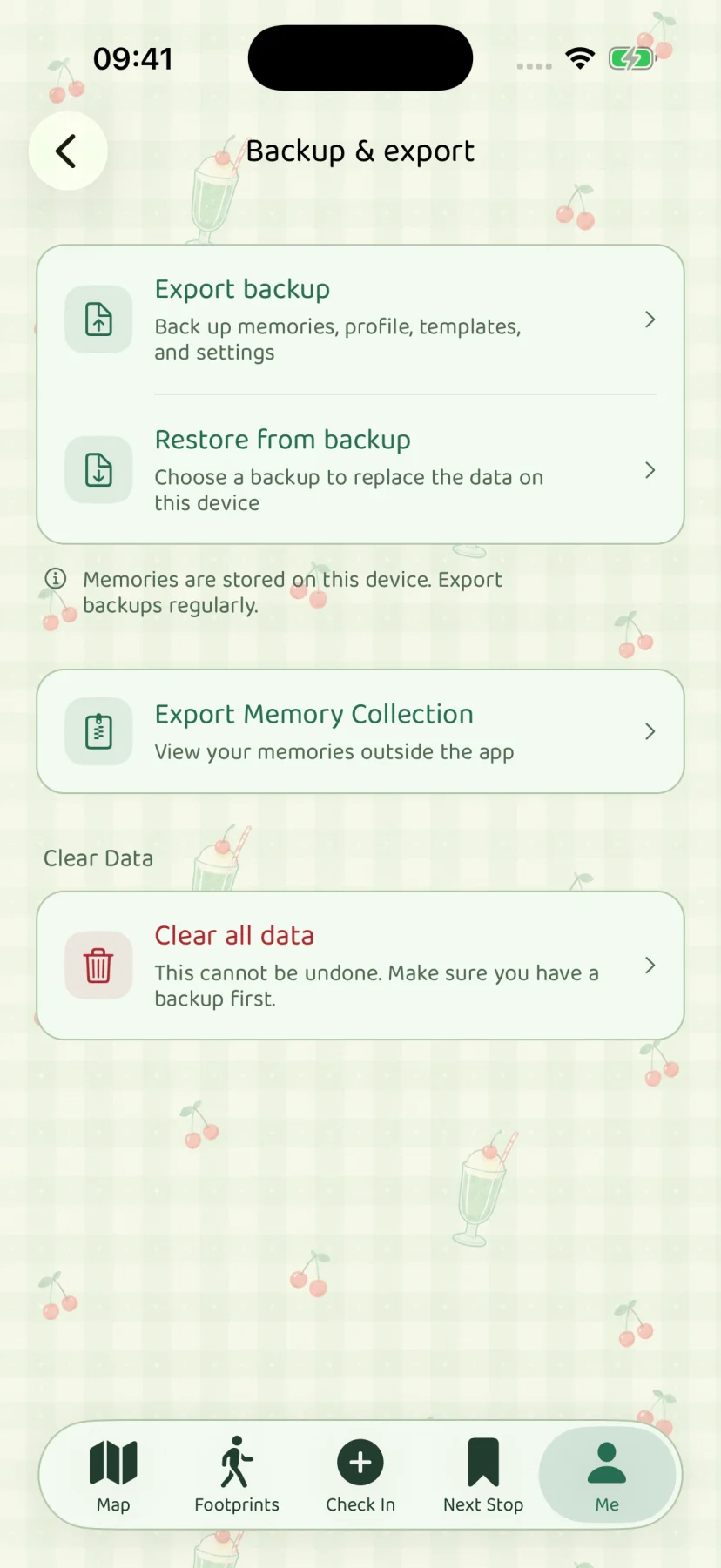
Export a backup
- Open Me → Backup & export.
- Choose Export backup and wait for preparation to finish.
- Choose a destination in the system file-saving interface and save the
.stopsandstoriesfile. - Check that the file is present in Files or your destination, then keep a copy outside your phone.
Use a computer, external storage or your own iCloud Drive. Export again after adding or changing memories.
Restore a backup
- Put the full backup somewhere accessible through Files on the target device.
- Open Me → Backup & export → Restore from backup and select it.
- Read the summary and replacement notice. If the app already has content to keep, cancel and back it up separately first.
- Confirm replacement and let restoration finish without force-quitting.
Restoring replaces existing local app data. It does not merge two libraries. The app checks file integrity before import. Keep the original file and do not modify its contents manually.
Changing phones and keeping copies
Before uninstalling, erasing or changing phones, confirm you can retrieve a backup stored elsewhere. The developer does not hold a copy of your memories and cannot recover unbacked-up data from a server.
For problems, see restore and file checks. Describe the error and app version when asking for help; do not send a private full backup.