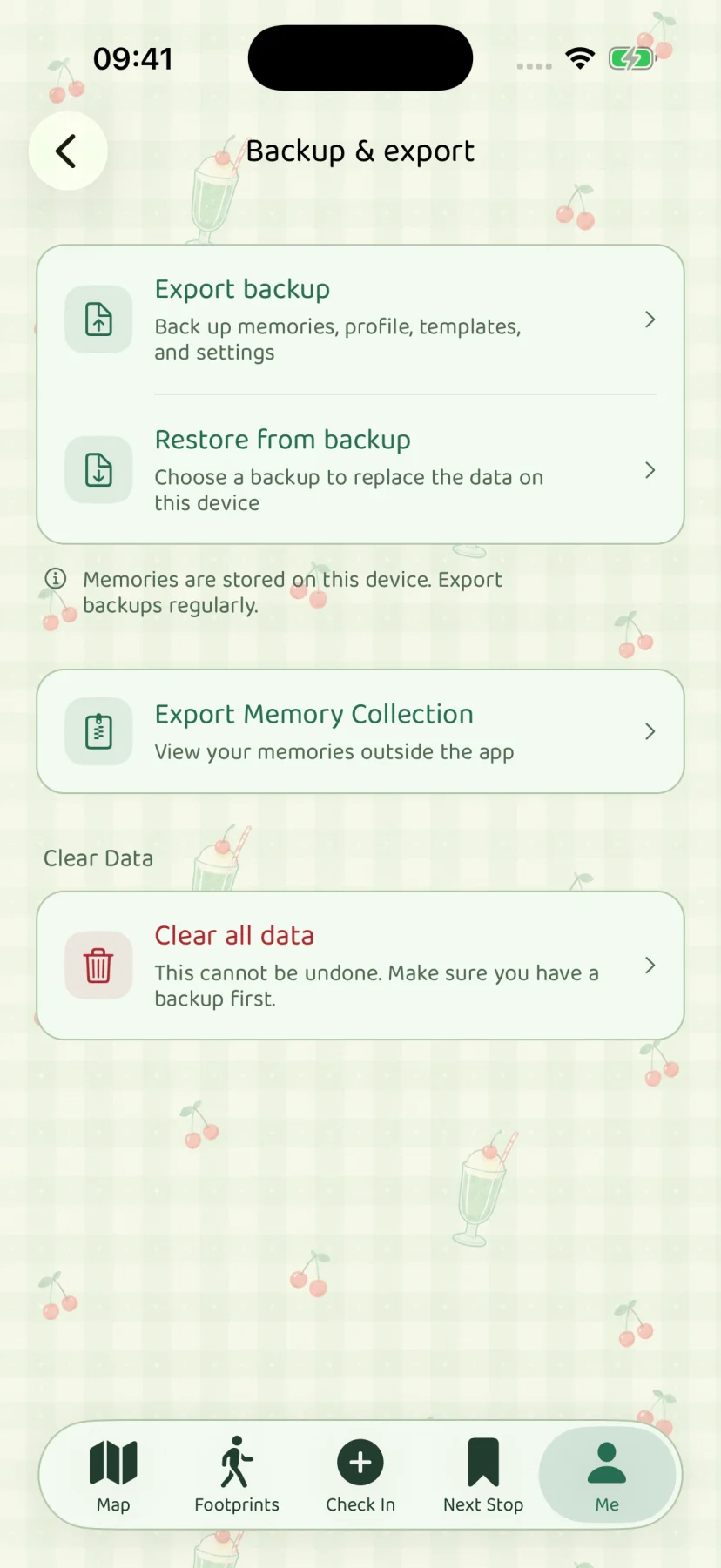
Journal backup & HTML export
Restore from a full .stopsandstories backup, or export a readable HTML memory package.
Choose the file for the job
Memories are stored in the app on your device. Stops & Stories has no developer-run cloud sync or account recovery for those memories. Its two export options let you keep a recovery file and a readable copy for different situations.
| Full backup | Memory package | |
|---|---|---|
| Main purpose | Restore data into the app | Read memories outside the app |
| Format | .stopsandstories |
Archive with index.html and media |
| Restore to Stops & Stories | Yes | No |
| Read in a desktop browser | Not its purpose | Yes, after fully extracting |
| Use before changing phones | Keep this file | Optional additional reading copy |
Keeping one of each can be useful, but the readable package is not a substitute for the full backup.
Export a full backup
- Open Me → Backup & Export.
- Choose Export Backup and wait for preparation to finish.
- Save the
.stopsandstoriesfile through the system file interface. - Keep a copy outside the phone, such as on a computer, external storage, or a file service you choose.
A current backup includes memories, profile information, templates, settings, and associated media. Check that your saved file is present before you uninstall the app or erase the device. Saving through Files to your own iCloud Drive is your choice of file storage; it is not automatic sync provided by Stops & Stories.
Restore means replace, not merge
On the destination device, open Me → Backup & Export → Restore from backup and select the full backup. Read the summary and the replacement confirmation carefully.
Restoring replaces the app’s existing local data. It does not combine two devices’ journals. If the destination already has content you care about, cancel and export that content as a separate full backup first. Keep the app open while the restore finishes. Older backup formats may include different personalization data; the restore summary explains the selected file.
Export something you can read
Choose Export Memory Collection in the same area. After preparation, save the archive and move it to your computer. Fully extract it into one folder, then open index.html in a desktop browser. Keep the page and its media folders together.
The package includes reading pages, written information, and associated media. Some videos or Live Photos may not produce a compatible browser preview; the retained files can be opened with a suitable local player. Export does not recreate photo-library originals that were compressed when imported into the app.
Treat exported files as personal material
Backups and memory packages may include private writing, later thoughts, people profiles, companion names, locations, photos, and media metadata. Review a readable export before sharing it. Store backups somewhere you trust and do not send a full backup with an ordinary support request.
Deleting local app data does not delete copies in Files, other apps, or another person’s possession. The developer cannot retrieve a journal that existed only on a lost or erased device. Read why a separate backup matters and the step-by-step support guide before a device change.
Older .lifemap backups remain supported for restoration. New exports use .stopsandstories; the backup contents and restoration checks stay compatible.
App screen