Fonts & languages
Choose a compatible app font, with 8 languages available in the app and on the website.
Start with the current interface language
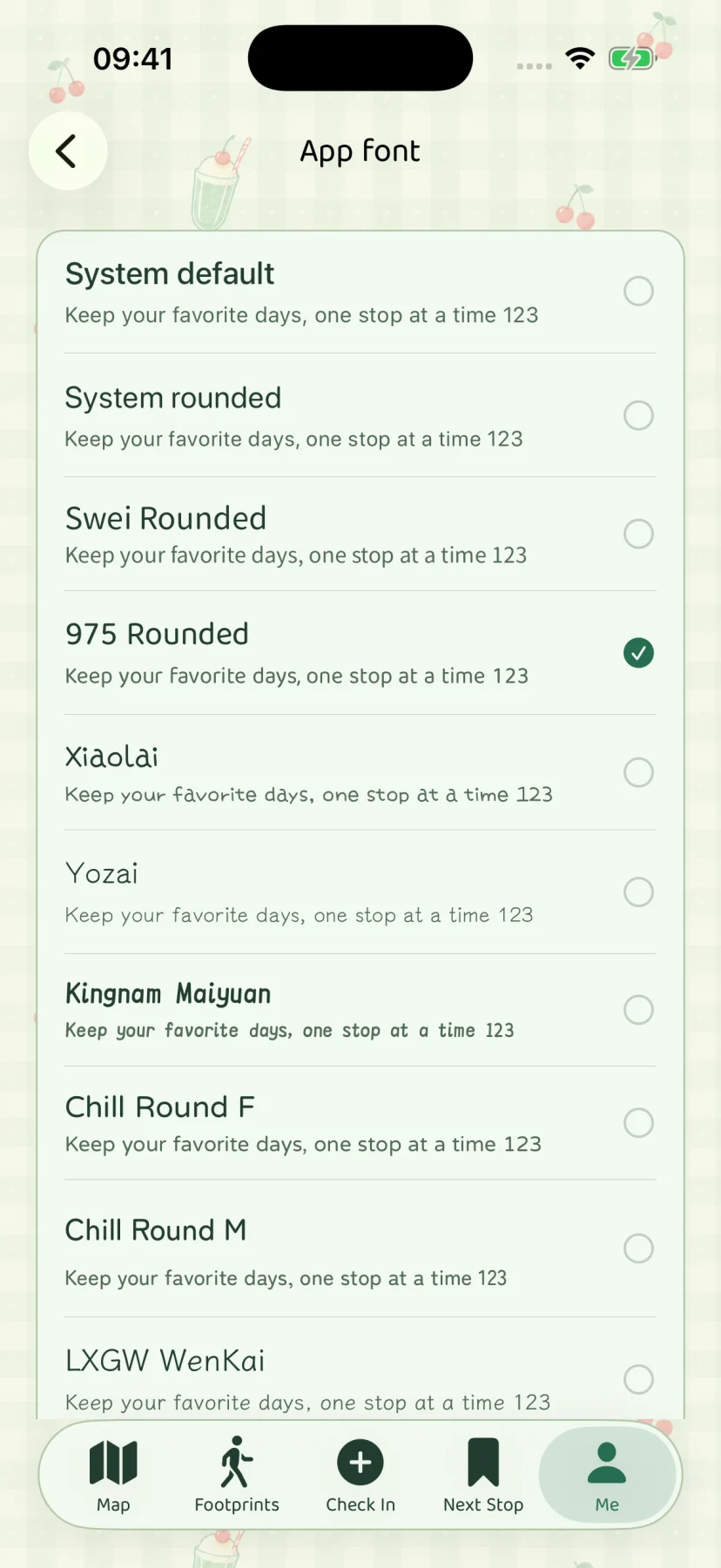
Open Me → App settings → App font. The list shows fonts compatible with the app’s current language, rather than every included font regardless of the writing system it can display. A font that is available in English may not appear when the interface is in Chinese.
This filtering is intentional. Choosing a style should not require you to guess whether the app’s labels can be drawn in that font. The examples in the list include text and numbers, so you can compare the everyday appearance before selecting one.
Choose and change the font
Tap a font row to select it. The selected indicator shows which option is active. You can return to App font to choose the system default or another compatible option; there is no need to change the interface theme or palette at the same time.
The font choice affects presentation. It does not rewrite the words in your memories, convert media, or translate your notes. Keep the content you want to remember independently of the appearance you prefer today.
What happens when you change languages
The Language screen checks the current font before applying the new interface language. There are two possible outcomes:
| Current font | What happens |
|---|---|
| Compatible with the new language | The language can change while keeping the font. |
| Not compatible with the new language | The app asks you to confirm the language change and a reset to the system default font. |
You can cancel the reset prompt and leave the current choice unchanged. If you confirm, the app changes language and restores the default font. You can then open App font and choose from the fonts compatible with that language.
A font missing from the new list is not a reason to reinstall the app or restore a backup. Check the interface language and its compatibility first.
Eight interface languages
The app and website both support eight languages: Simplified Chinese, Traditional Chinese, English, Japanese, Spanish, French, German, and Brazilian Portuguese. In the app, use the Language screen to choose the interface you want.
This setting changes app labels. A memory written in one language stays in that language; the app does not automatically translate its title or body. Website language is independent of app settings; use the language selector in the header to change it.
Preserve settings without confusing them with content
Current full .stopsandstories backups include personalization settings as well as memories and related media. Before replacing an installation or moving devices, keep a current full backup, then read the selected file’s restore summary. Older formats may include a different set of settings.
For issues with a displayed font, tell support the app language and the selected font, along with the app and iOS versions. A screenshot can help if you choose to send one, but remove private writing first. You do not need to send a complete journal backup.
App screen