
Themes, colors, fonts and language
Understand the separate settings and choose an appearance that suits you.
Choose an interface theme
Go to Me → App settings → Interface theme to preview and select a theme. Themes define the background, texture and decorative design. They do not change your writing.
Adjust the palette separately
Theme and palette are separate choices. A palette adjusts interface colors while the theme’s background artwork retains its own design. Try different palettes with the same theme.
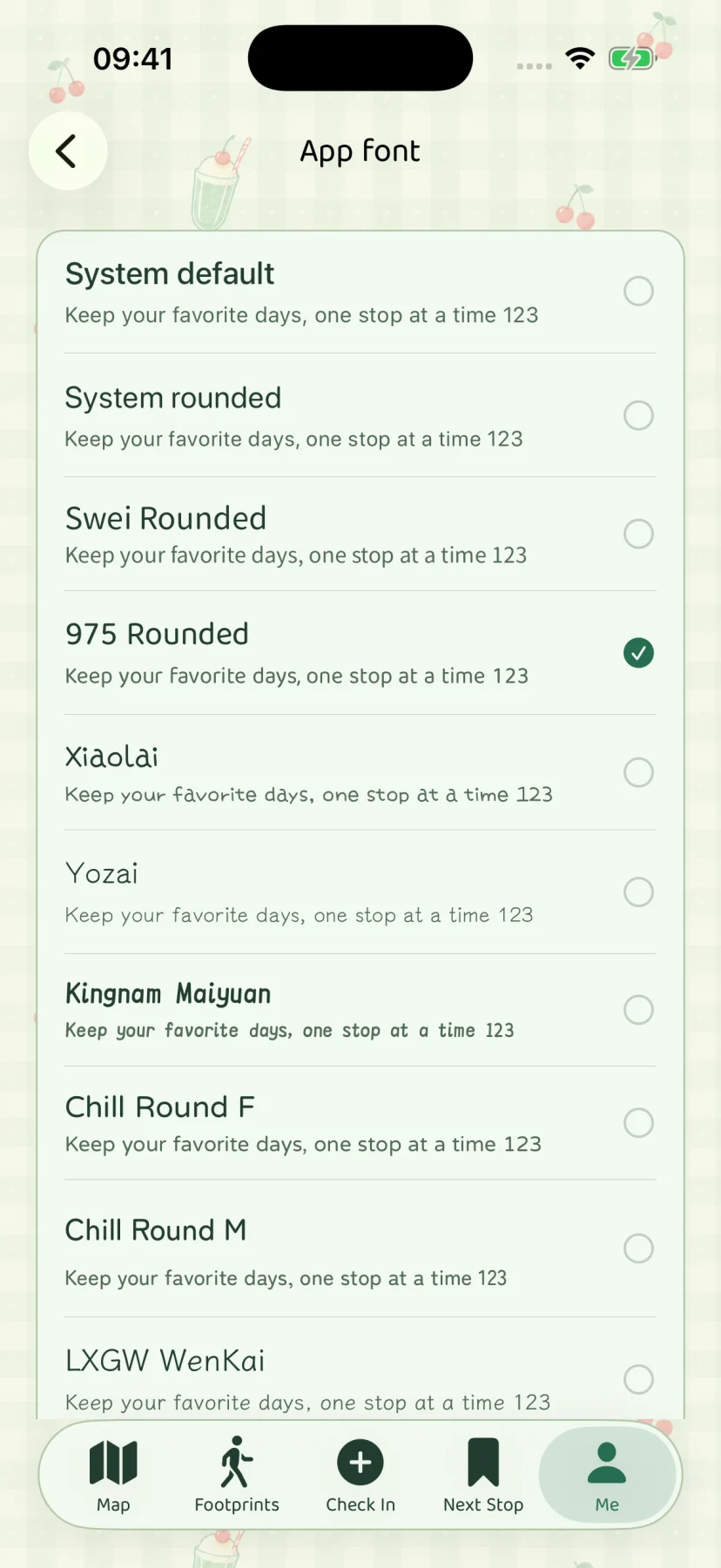
Pick a compatible font
Open font settings in App settings and choose a font compatible with the current interface language. Fonts cover different writing systems, so the available choices may change with language. The system font fills in unsupported characters.
Change language
The app and website both support eight languages: Simplified Chinese, Traditional Chinese, English, Japanese, Spanish, French, German and Brazilian Portuguese. Use the language selector in the website header independently of app settings.
Choose a language in the app’s language settings. This changes interface text, not memories you have written. The icon name follows system language settings; see language and font questions.
Customize memory and sharing layouts
Memory display templates and sharing templates are separate settings. See display and sharing templates. They do not replace the whole app theme.